Set up email on your own domain so that it actually arrives
Getting hello@yourdomain working takes about forty-five minutes and costs nothing. One step decides whether the mail arrives, and it is not the one you expect.

I build scrapers and automate the boring parts of data work.
45 min·beginner·7 steps·you end up with a working hello@ address on your own domain
Nothing here is sponsored. Some links can be affiliate links, and the page says which.What we earn
Setting up email on your own domain takes about forty minutes and costs nothing on a free tier. The step that decides whether it works is turning off whatever already handles mail for the domain. If a forwarder still holds the MX records, your mailbox is fine and the mail still bounces. Publish an alias rather than a second user, and verify with dig: the provider's status page caches a green tick after the records are gone.
Getting hello@yourdomain working takes about forty-five minutes, and none of it costs
anything. Most of it is straightforward clicking. One step is not, and it happens to be
the step that decides whether any mail arrives at all, so that is where this spends its
time.
We set it up on this domain, then broke it on purpose to see what the failure looks like from the inside. The screenshots below include the states you only reach when something is wrong, alongside the ones that merely look wrong and are fine.
- A domain with DNS you control. Ours is on Cloudflarewe ran it on the free tier
- A mailbox provider. We used Zoho Mailwe ran it on the free tier
- A way to look up DNS. Two
digcommands at the end, or any browser based lookup, are the only way to know the change took.
Pick a mailbox, not a forwarder
There are two products here that sound like the same thing, and choosing the wrong one costs you an afternoon.
Forwarding takes mail addressed to hello@yourdomain and drops it into an inbox you
already have. It is free, usually unlimited, and it looks like exactly what you want. The
catch arrives the first time you reply. There is no inbox of its own and no From address,
so the reply goes out from whichever personal account received the forward, which undoes
the reason you wanted the domain.
A mailbox is a real account on your domain. If the address is going on a website, somebody will eventually write to you and you will eventually answer them. Start here.
Two limits are worth checking before you commit to a free plan. Zoho Mail(not an affiliate link, opens in a new tab)’s excludes IMAP, POP and ActiveSync, so it lives in the browser and the mobile app and will not open in a desktop client. It also covers a single domain with five users on it. That is enough for most people, but you want to know it now rather than after you have built on it.
Create the account and choose the data center
Sign up before you touch DNS. The account gives you two things the later steps depend on: the admin console, and a data center.
The data center is worth slowing down for. You choose it when you create the account, it determines which hostnames your MX records point at, and changing it afterward means asking support to move you. Pick the region closest to the people who will be writing to you.
It is also why step 4 tells you not to copy MX records out of a guide, this one included. Most guides show a single region’s hostnames, and those are only right for readers who happened to choose the same region.
Turn off anything that already handles mail for the domain
Do this before you touch DNS.
Whatever holds your MX records is what receives your mail. That sounds obvious until you have a mailbox configured perfectly and messages still bouncing, because a forwarding service you set up months ago is quietly still in the way. Worse, the two systems will fight over the same records without telling you.
Here is the activation flow, listing the records it intends to write:
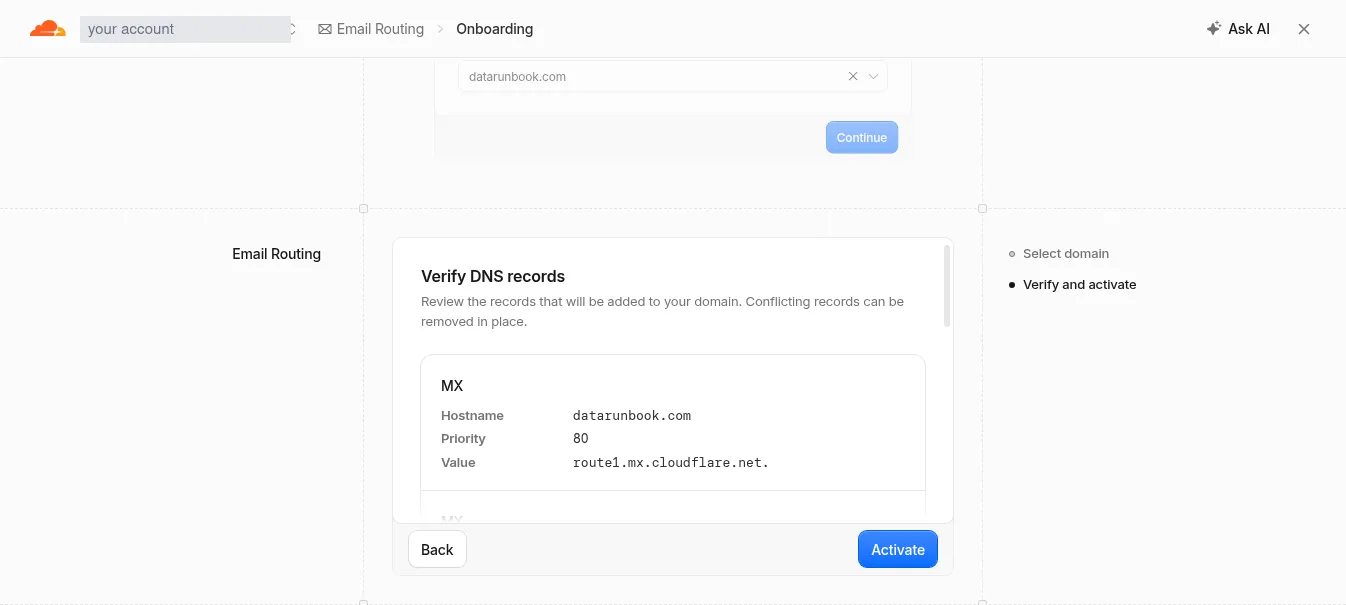
We clicked Activate while the mailbox provider’s MX records were still in place, and nothing happened. No error, no warning, nothing on screen changed at all. Only after those records were deleted did the same button work. If a service appears to be ignoring you at this screen, that is the first thing to check.
Once it is on, it takes ownership of the domain’s mail records. Its own are marked Locked. Your mail provider’s SPF is marked Conflicting, with a Delete button beside it, and the forwarder’s own SPF shows as Missing.
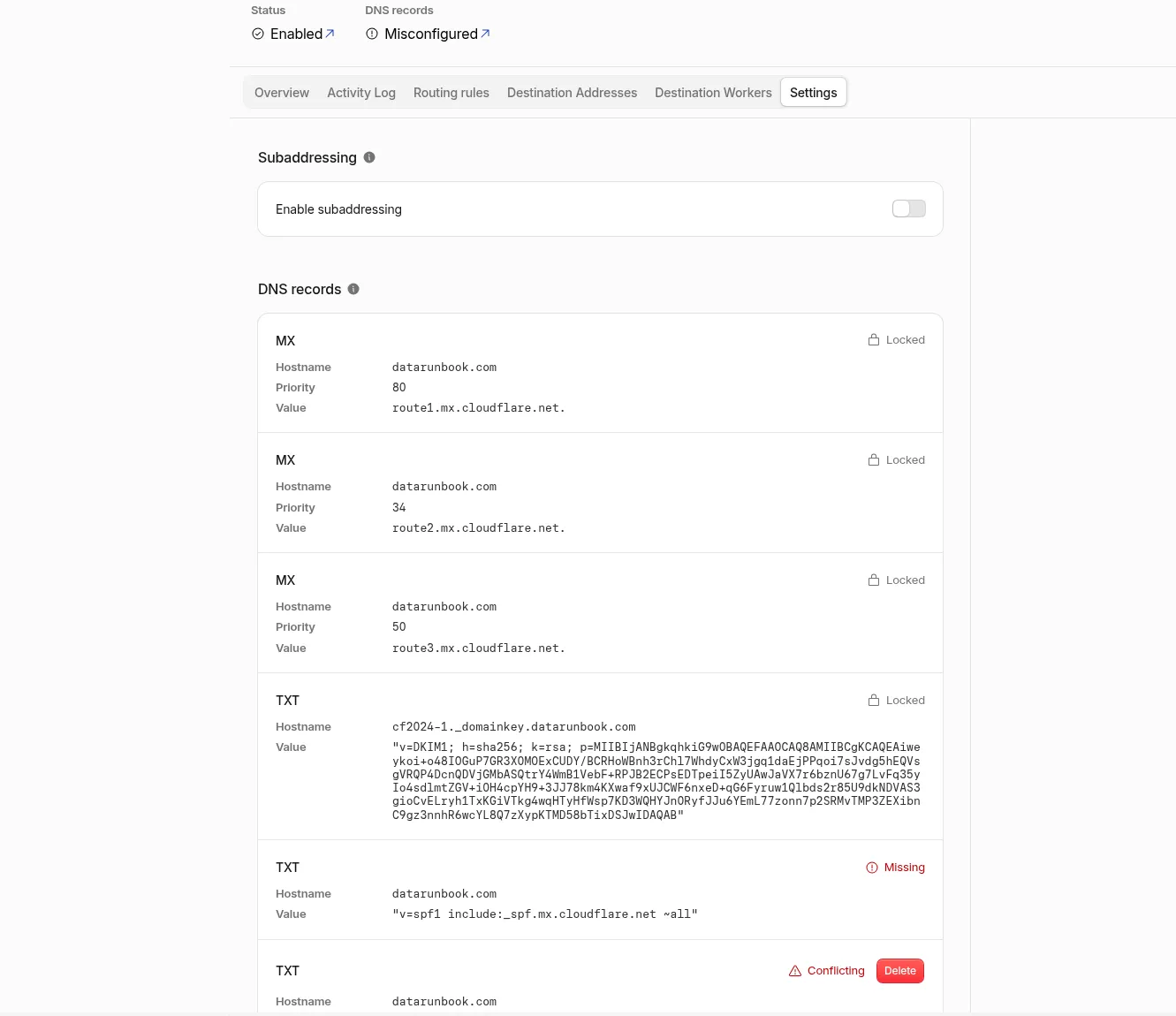
Turning it off properly
Deleting the records in the DNS tab is not the same as turning the service off. Do that and you leave it enabled with nothing to work with, which looks like this:
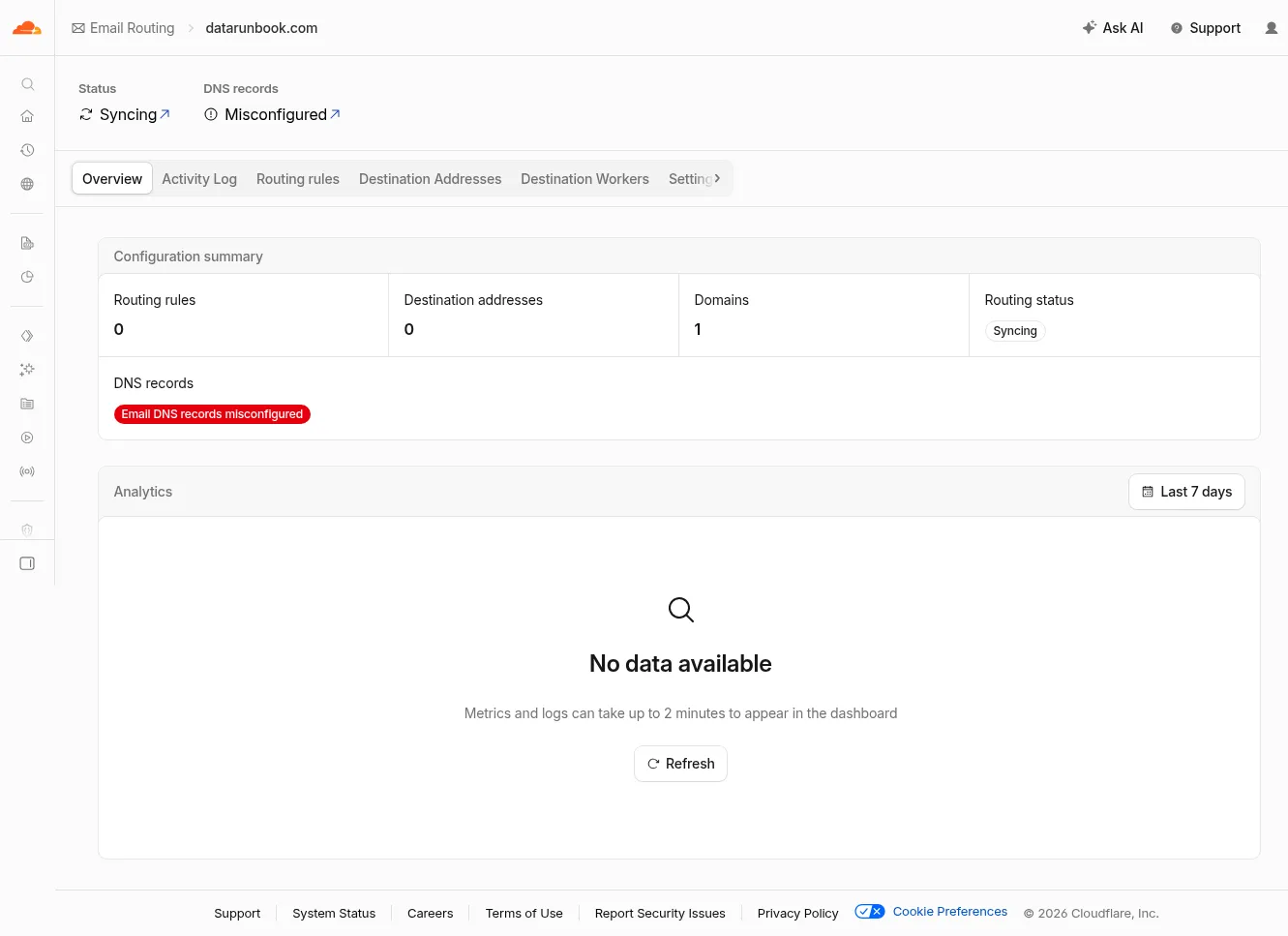
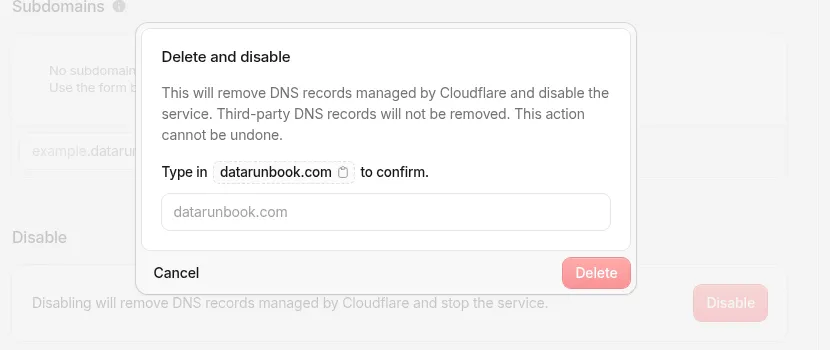
The actual switch is in the service’s own settings, near the bottom, and it asks you to type the domain name before it will do anything:
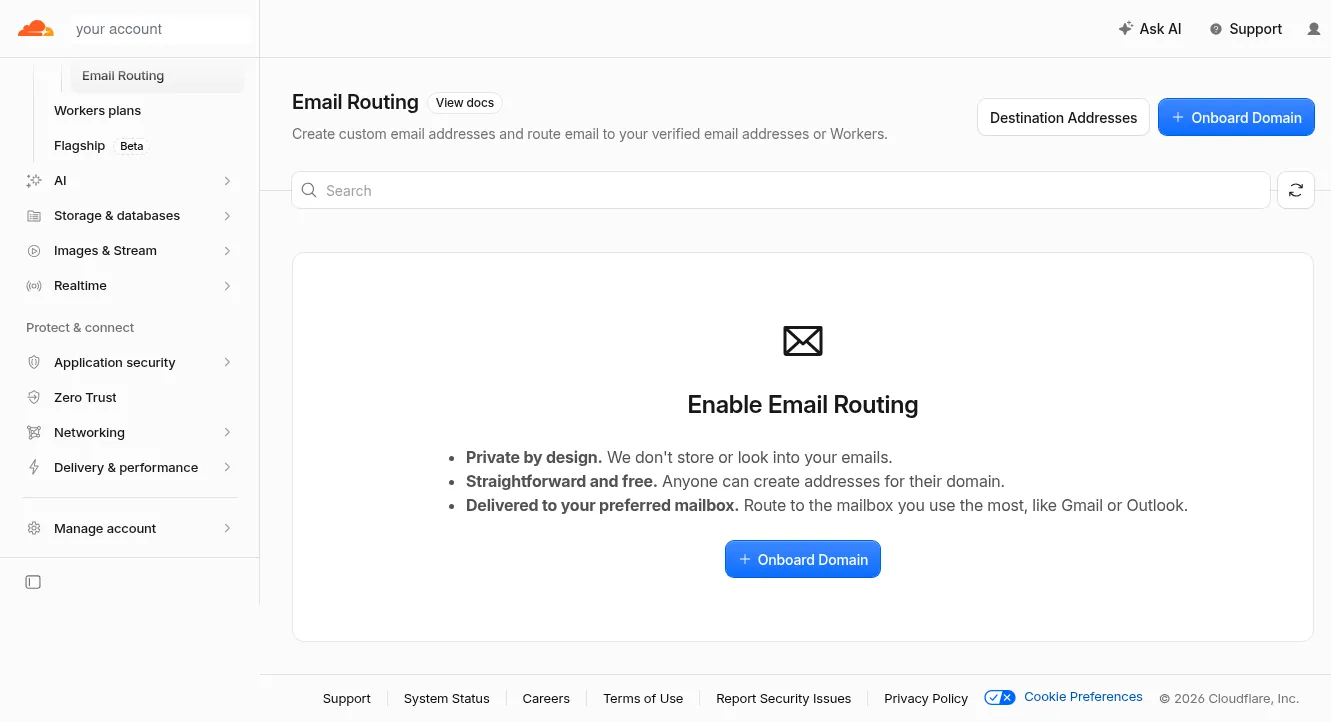
You know it worked when the service offers to onboard a domain again, rather than showing you one:
Let the mail provider write the DNS records
Do not copy records out of a guide, this one included. The MX hostnames depend on the data center you chose in step 2, and one wrong character is a bounce you will spend an evening chasing.
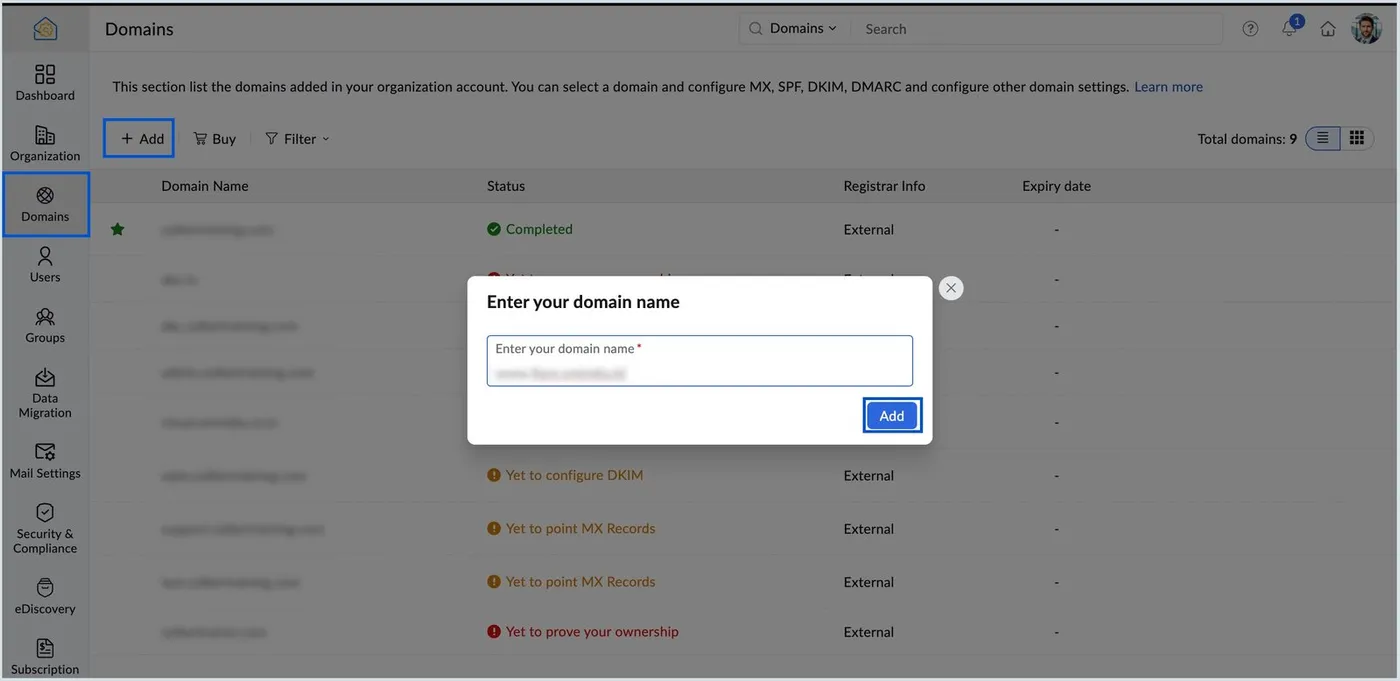
Both sides support a one time handoff instead. Start in the admin console by adding the domain:
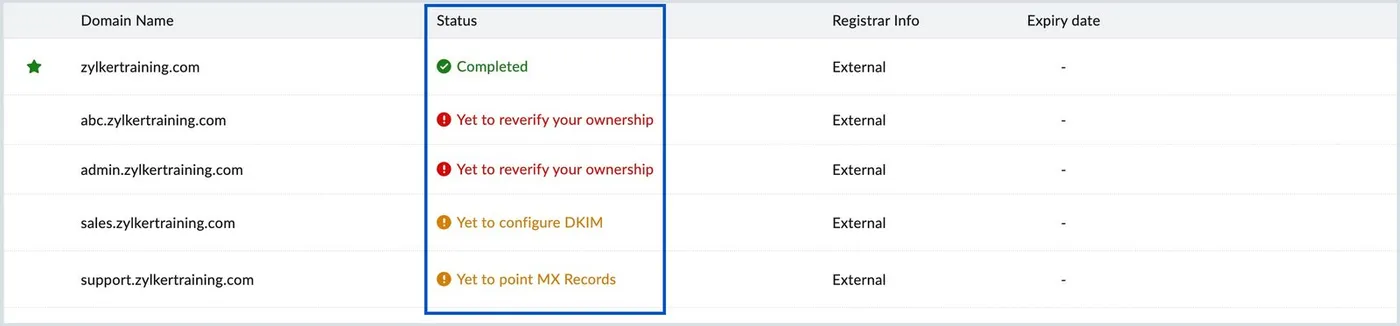
Each domain carries a single status, and it names the next thing you have to do rather than only telling you pass or fail:
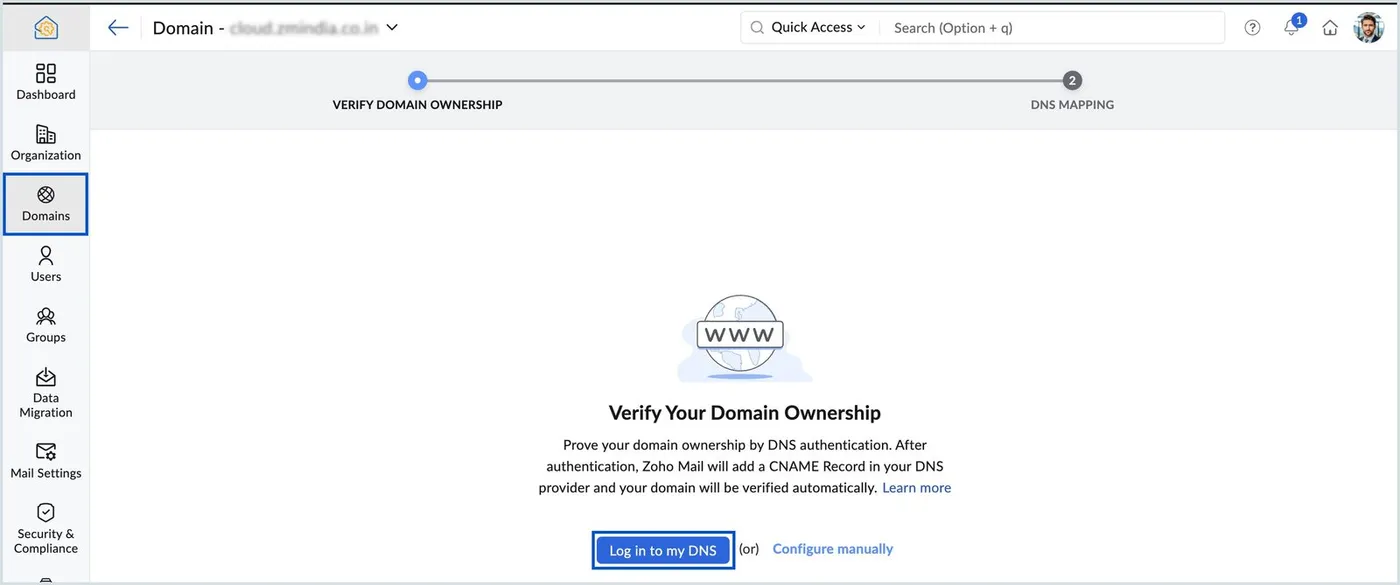
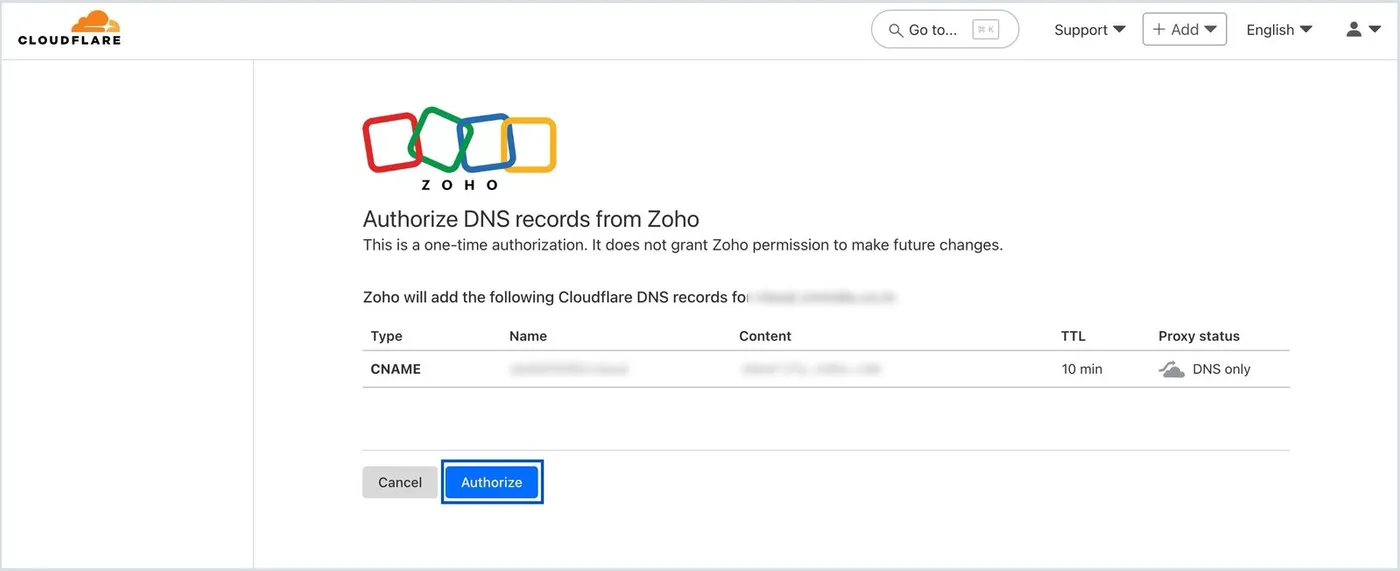
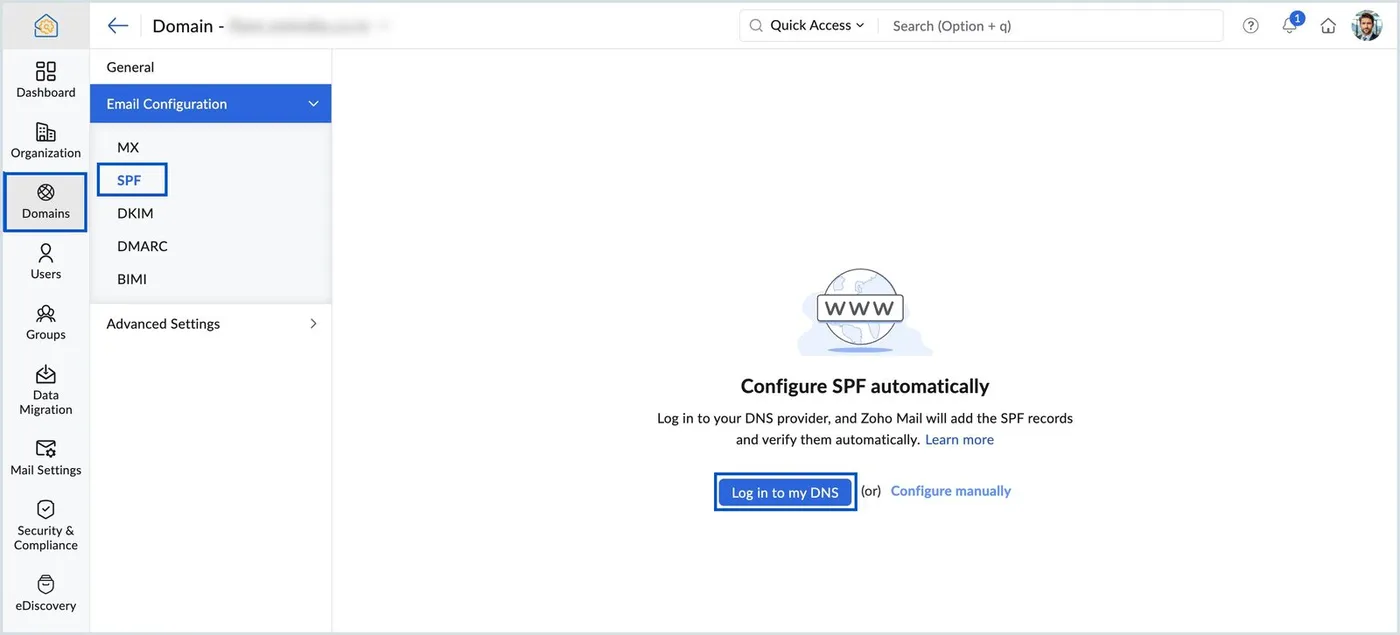
Rather than copying a verification record by hand, you hand over once:
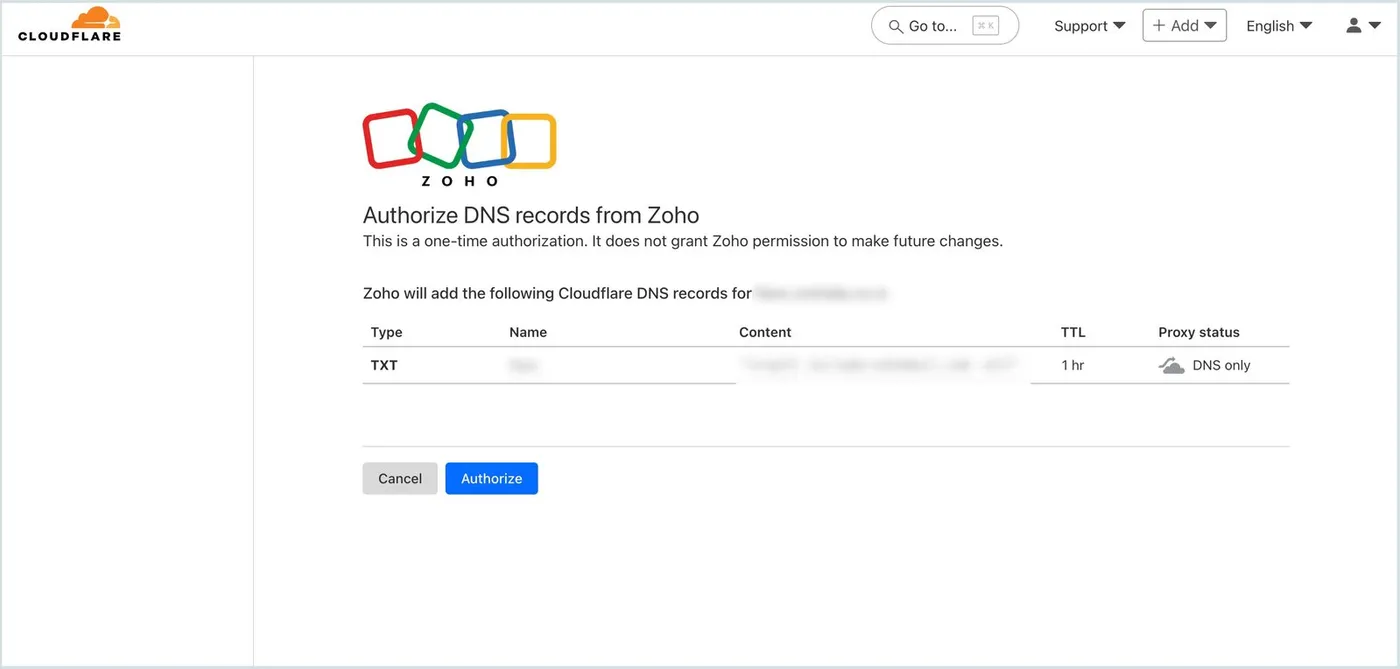
Your DNS provider then shows you exactly what is about to be written, and nothing beyond it:
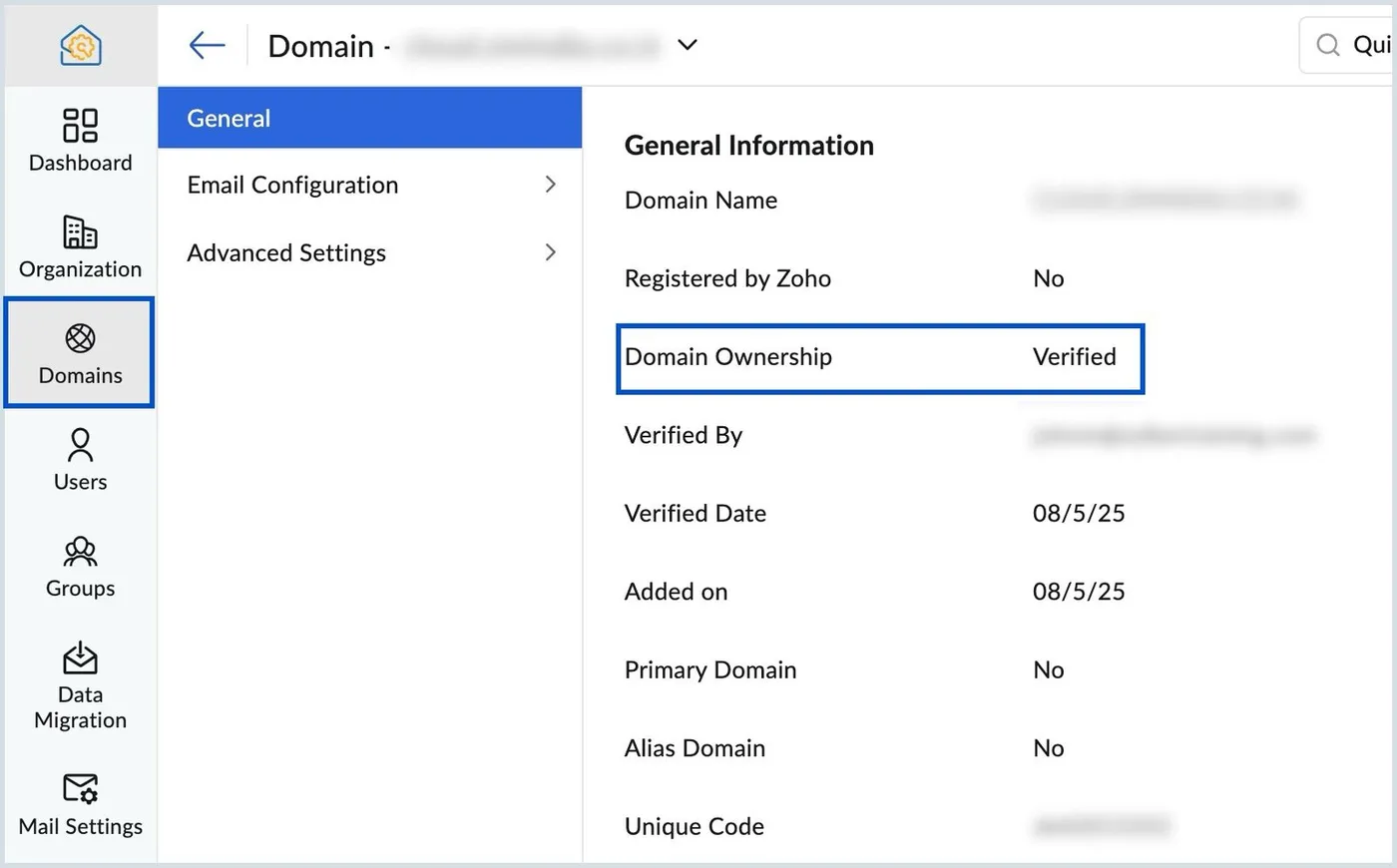
Ownership is then verified without you typing anything:
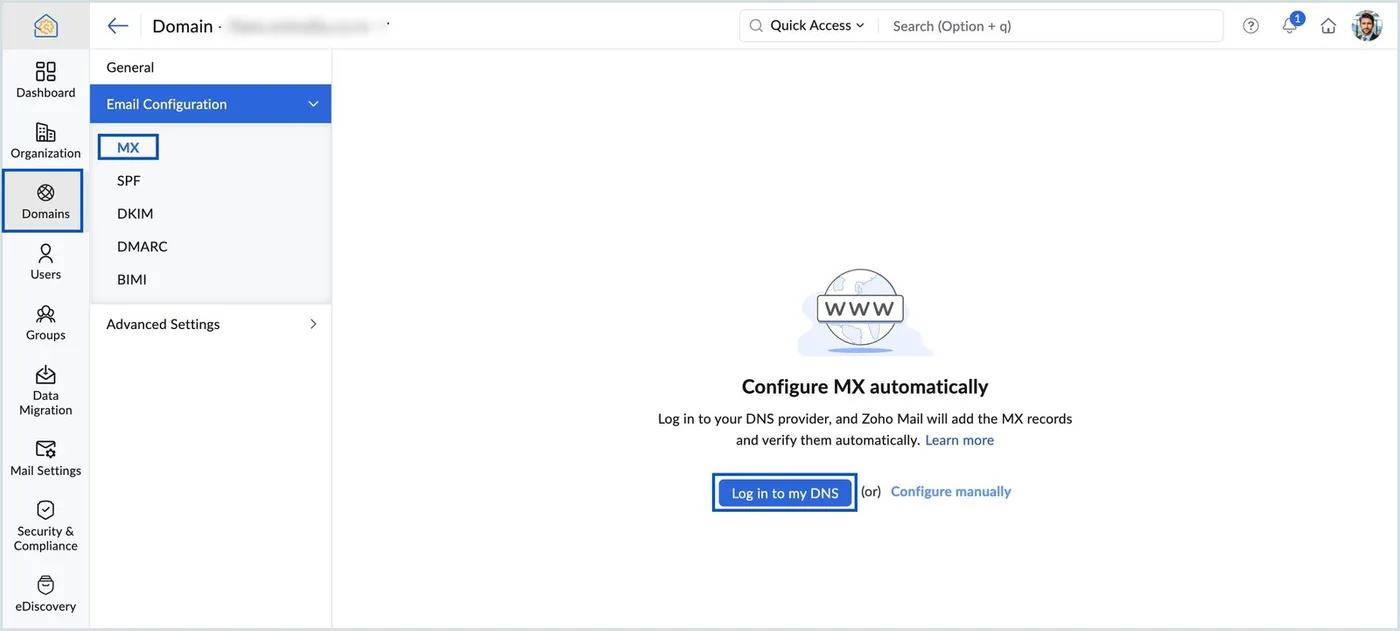
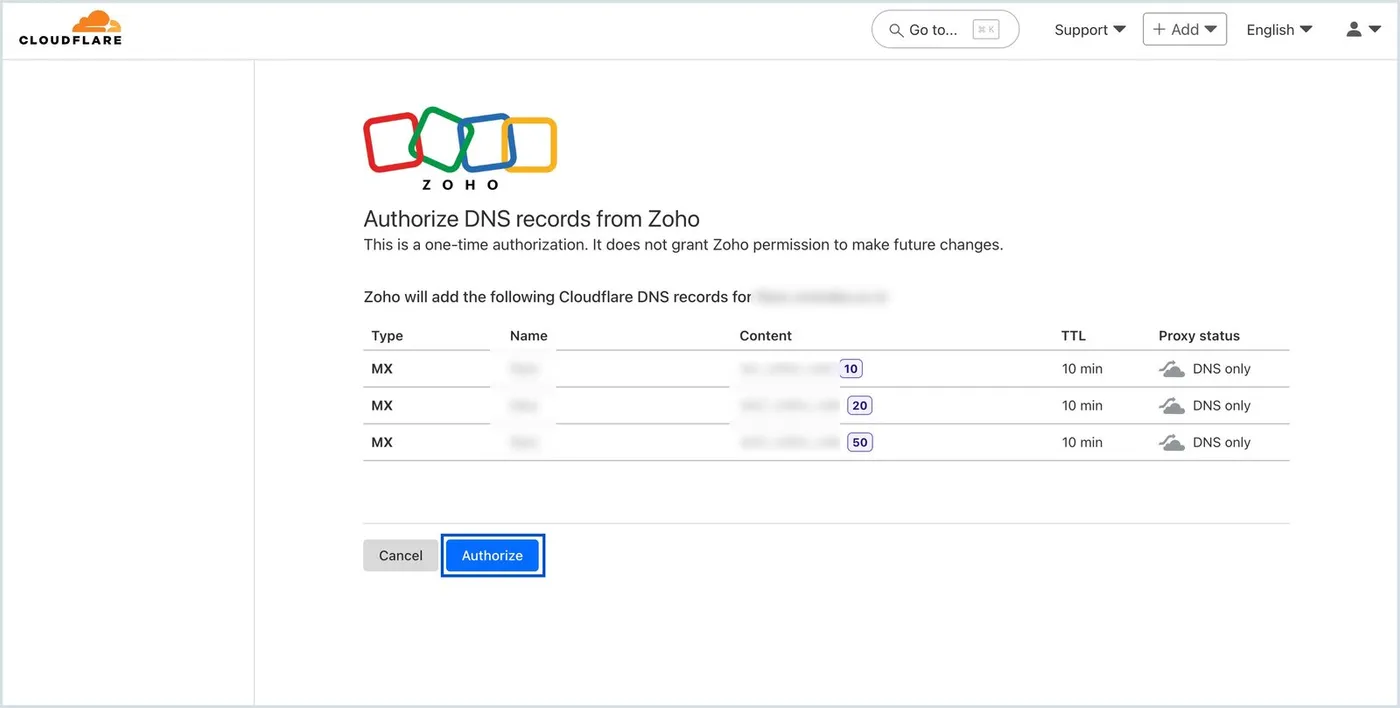
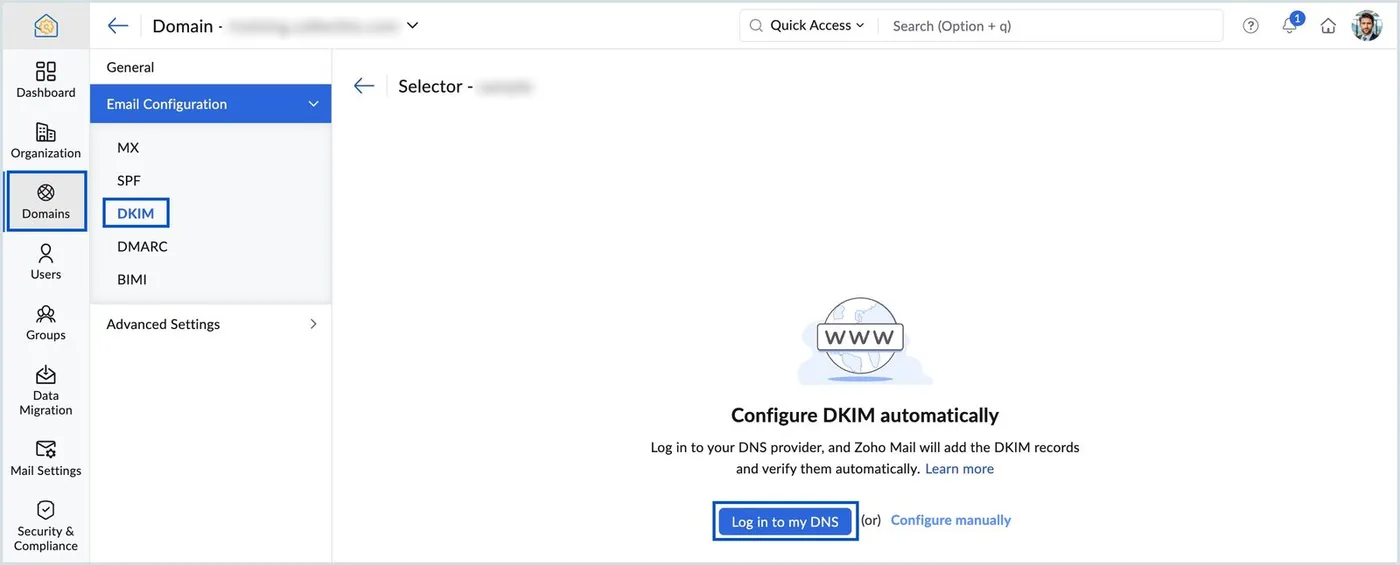
Now repeat that same handoff for each record type. The panel is identical every time with only the record name changed, which is worth knowing so you are not hunting around for a different button:
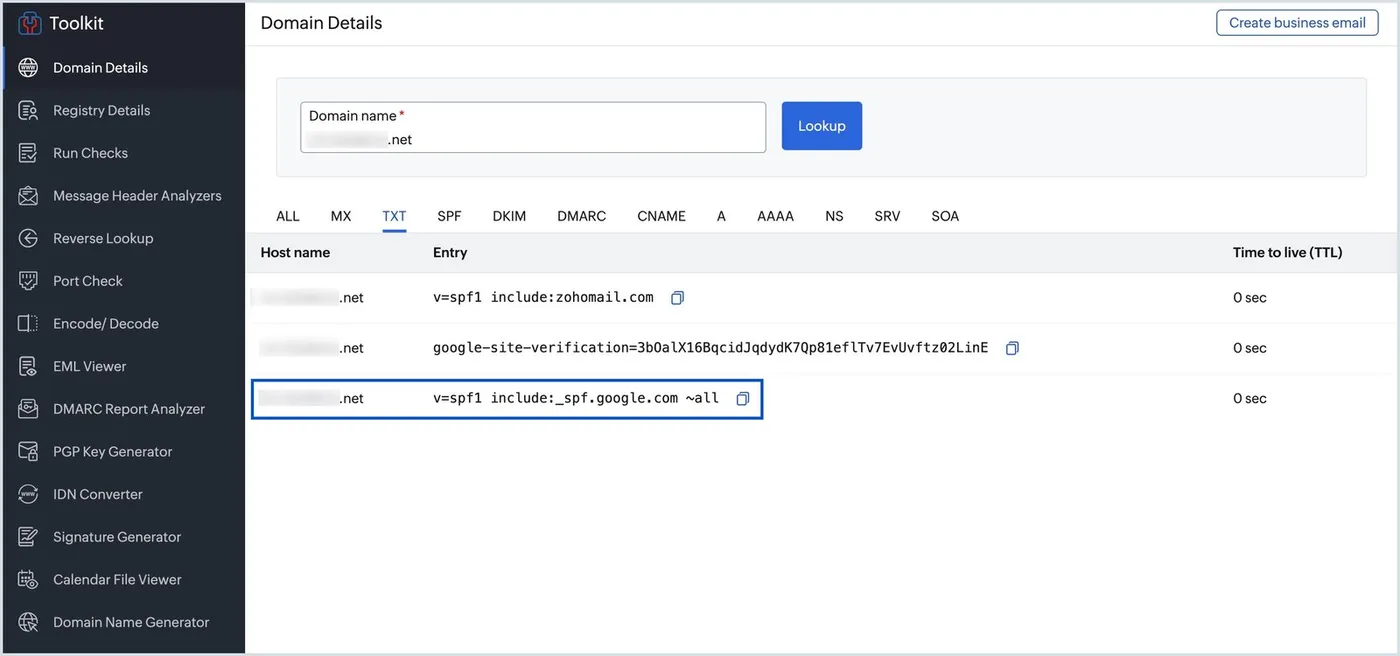
Here is what the broken version looks like from outside, which matters because your own dashboard will not show it to you:
DKIM needs one extra decision first, because you pick a selector name and a key length:
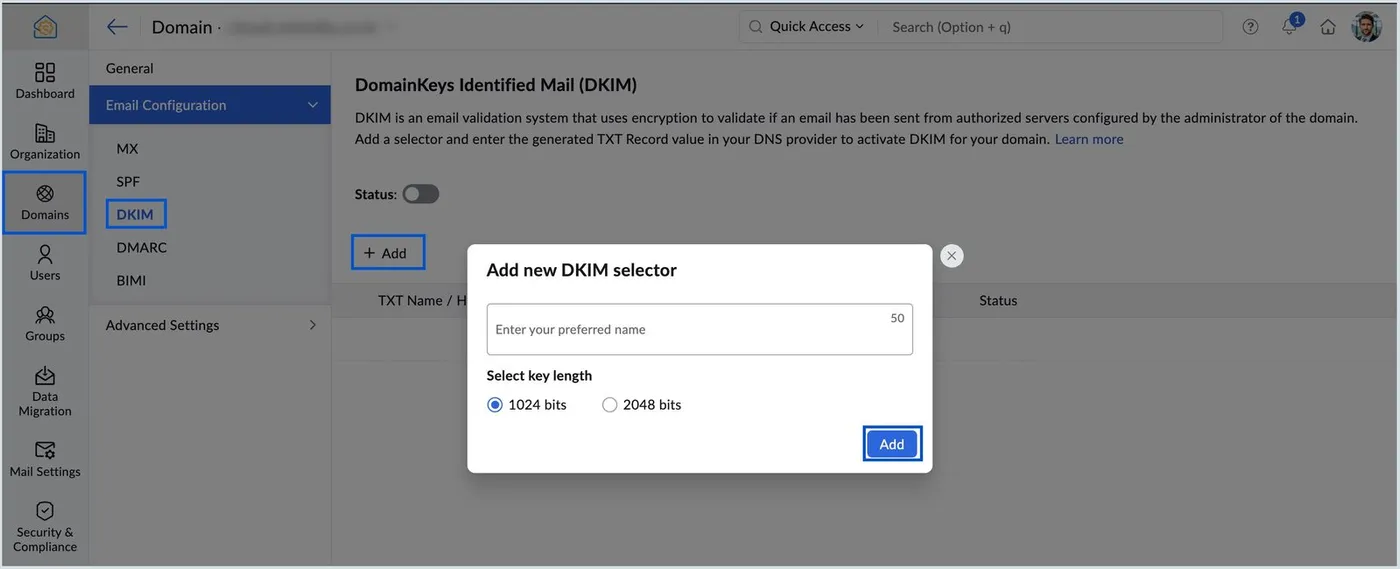
Right after you add it, the selector reads Unverified and the DKIM toggle is off. That is normal at this point, not a failure:
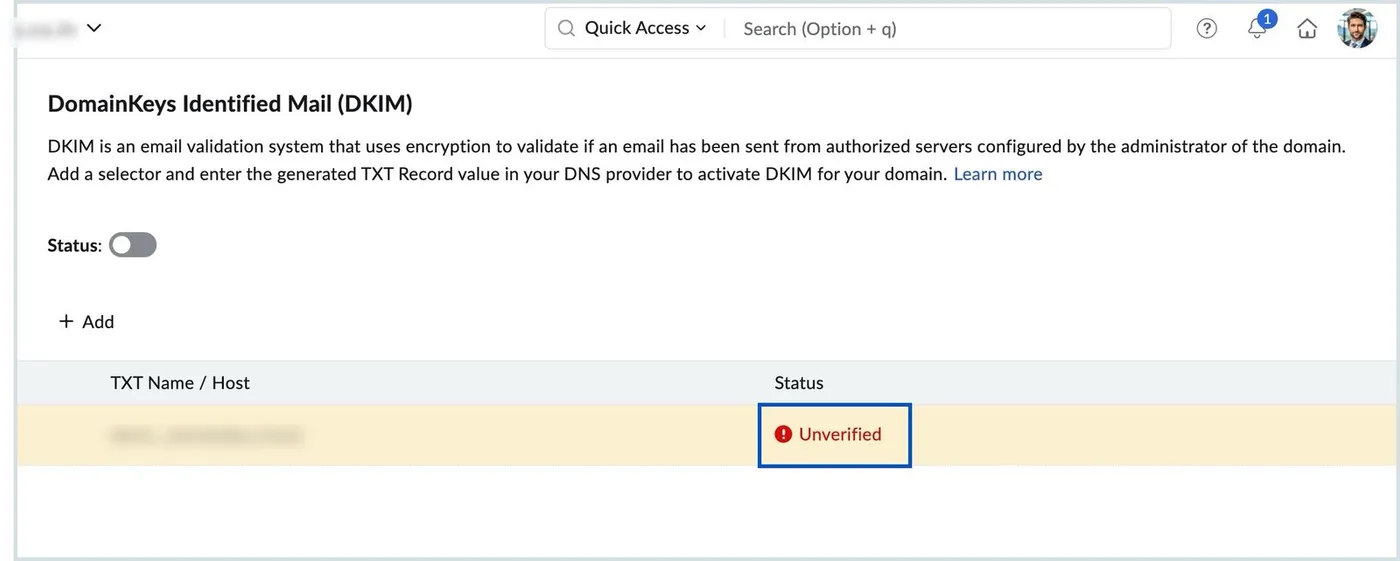
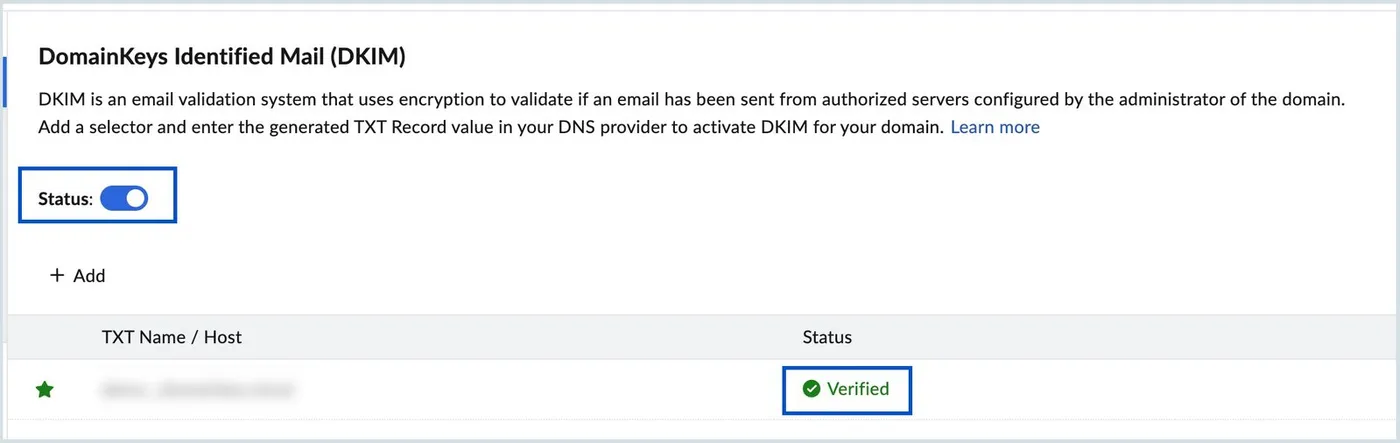
The selector name is whatever you typed, and it is not always what the documentation
implies it will be. Ours is zmail. Write it down somewhere you will find it again,
because it is the thing you need when a DKIM check fails a year from now.
Create the mailbox and its aliases
The domain is verified and the records are in, but nothing has an inbox yet. This step produces the address you actually wanted.
Your own account already exists from step 2. What you publish is an alias on it rather than a second user. In the admin console: Users, your account, Mailbox Settings, Email Alias, Add.
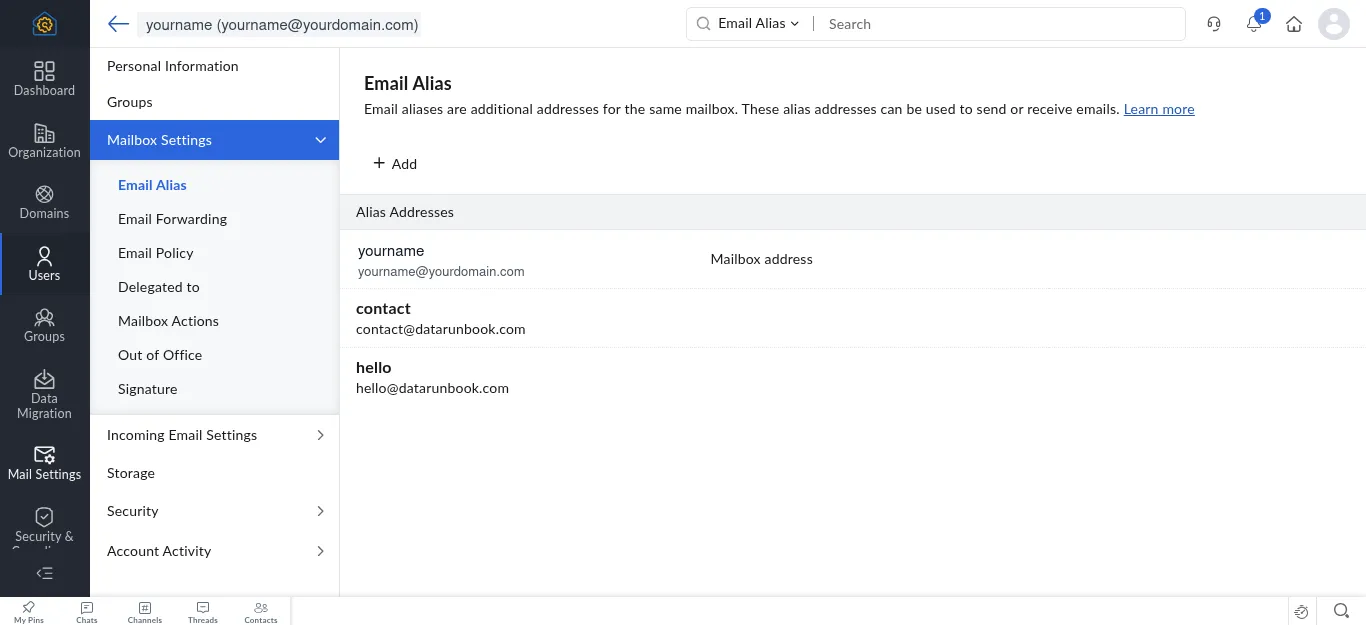
Aliases land in the same inbox and show up in the From dropdown when you reply, so
hello@ behaves like a real address in both directions. A shared address does not need an
account of its own. As an alias it costs no seat and keeps everything behind one login, so
spend the free plan’s five users on people instead.
That is the address built. Step 7 is where you prove it works.
Check it with dig, not with the dashboard
dig +short MX yourdomain.com @1.1.1.1
dig +short TXT yourdomain.com @1.1.1.1
The first should return the three hostnames of the service you set up, at the priorities
the authorization dialog showed you. The second should return exactly one v=spf1 record.
Where the dashboard and dig disagree, believe dig. If you would rather not open a
terminal, any browser based DNS lookup does the same job, including the one shown in
step 4.
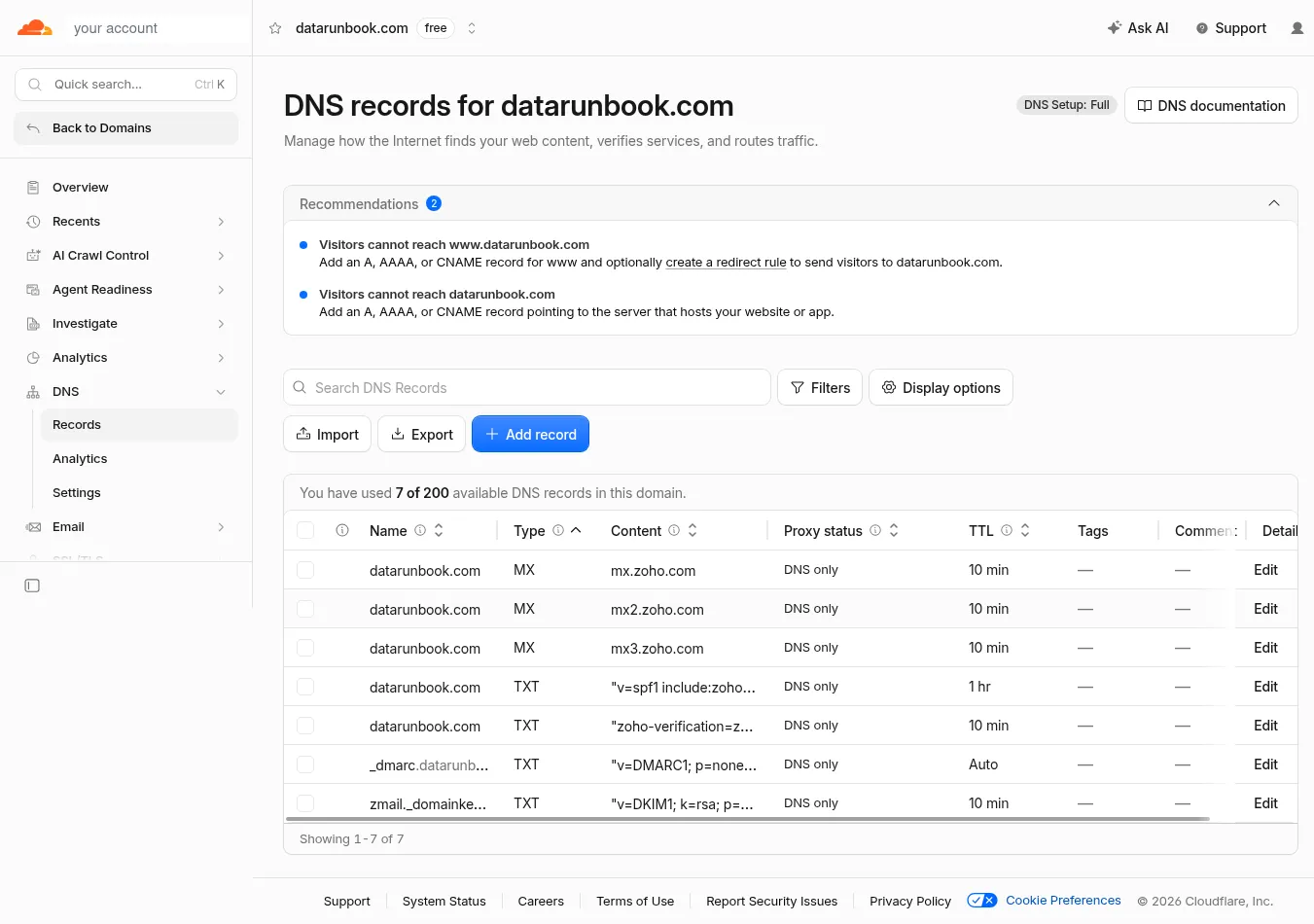
Read against the records themselves, a finished setup is seven rows:
Here is why that instruction is in the runbook at all. This is the mail provider’s own MX status tab, photographed at a moment when the domain had no MX records whatsoever, because we had just deleted them:
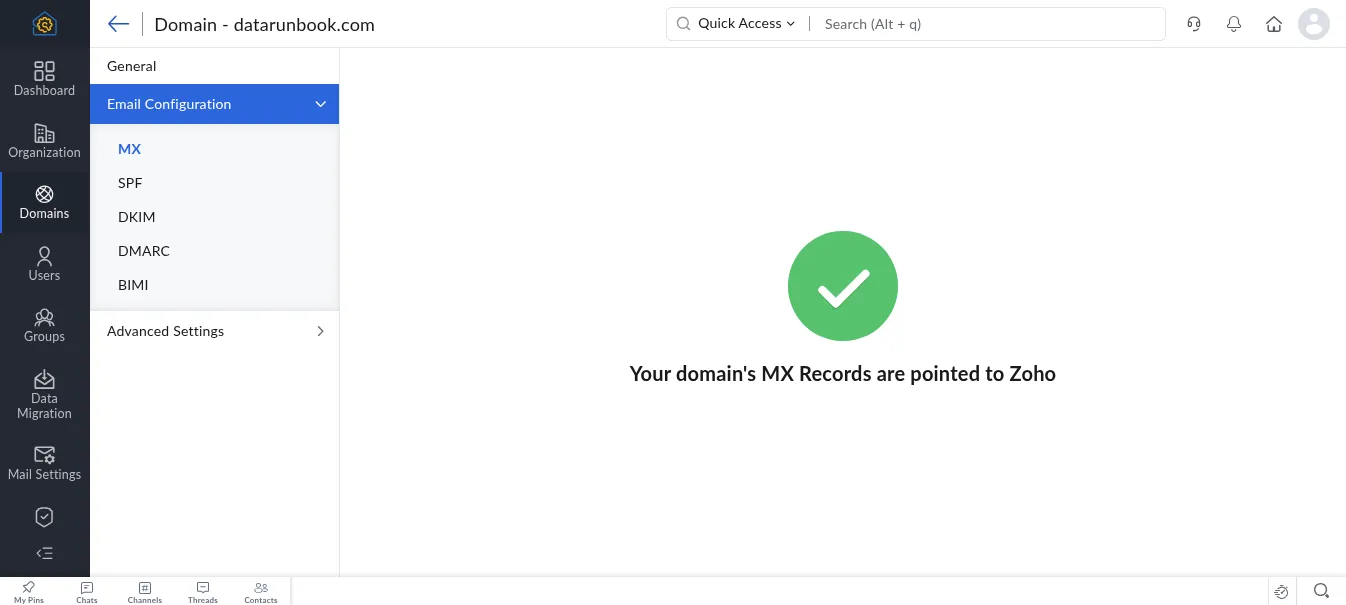
A status page tells you what it concluded at some point in the past. dig tells you what
the rest of the internet can see right now.
Send it both ways and read the headers
DNS being right is not the same as mail working. Two messages settle it.
Inbound first. From an account somewhere else, send to hello@yourdomain. It should land
in the mailbox you just made. Check the spam folder as well, because a domain that has
never sent or received anything has no reputation yet, and the first message sometimes
goes there. If it does, mark it as not spam rather than deciding the setup is broken.
Then outbound. Reply to that message, and send a fresh one to the same outside account.
Look at two things on what arrives: that it arrived, and that the From line reads
hello@yourdomain rather than the account that owns the mailbox. That From line is the
entire reason step 1 chose a mailbox over a forwarder, so it is worth checking rather than
assuming.
Read the authentication headers
Arriving is not the same as passing. Open the message you received and look at its authentication headers. In most webmail this sits behind an option like Show original or View source on the individual message.
You are looking for one block, and three words inside it:
Authentication-Results: mx.google.com;
       dkim=pass header.i=@yourdomain.com header.s=zmail;
       spf=pass (domain of hello@yourdomain.com designates
             <sending server> as permitted sender);
       dmarc=pass (p=NONE sp=NONE dis=NONE) header.from=yourdomain.com
Notice header.s=zmail. That is the selector you chose back in step 4, which is how you
confirm the DKIM record in use is the one you set up rather than something left behind by
an earlier attempt.
| What you see | What it means |
|---|---|
spf=pass dkim=pass dmarc=pass |
Finished. Nothing else to do. |
spf=fail |
The server that sent this is not covered by your SPF record. Usually a second sender you forgot about, or a second v=spf1 record. |
dkim=fail or dkim=none |
The selector does not resolve, or the key was truncated on the way into DNS. Recheck the selector name against step 4. |
dmarc=fail with SPF and DKIM passing |
Alignment. The domain in the From line does not match the domain that passed SPF or DKIM, which usually means you are sending through something else. |
dmarc=pass (p=NONE ...) |
Correct for now. p=none is what you set, and it is where you should stay until you have read a few reports. |
A message that arrives today on a failing DKIM record is a message that gets filtered three months from now, when some receiver tightens its rules. This check is what turns “it seems to work” into something you can rely on.
What this does not cover
Sending at volume. A domain that has never sent mail has no reputation, and a few hundred cold messages on day one is how a new domain gets filtered before anyone reads it. That needs a real send with measured inbox placement, so it is a separate runbook and it does not exist yet.
Neither tool here has an affiliate program we are part of. They are what we used.